
Know which tab you are switching
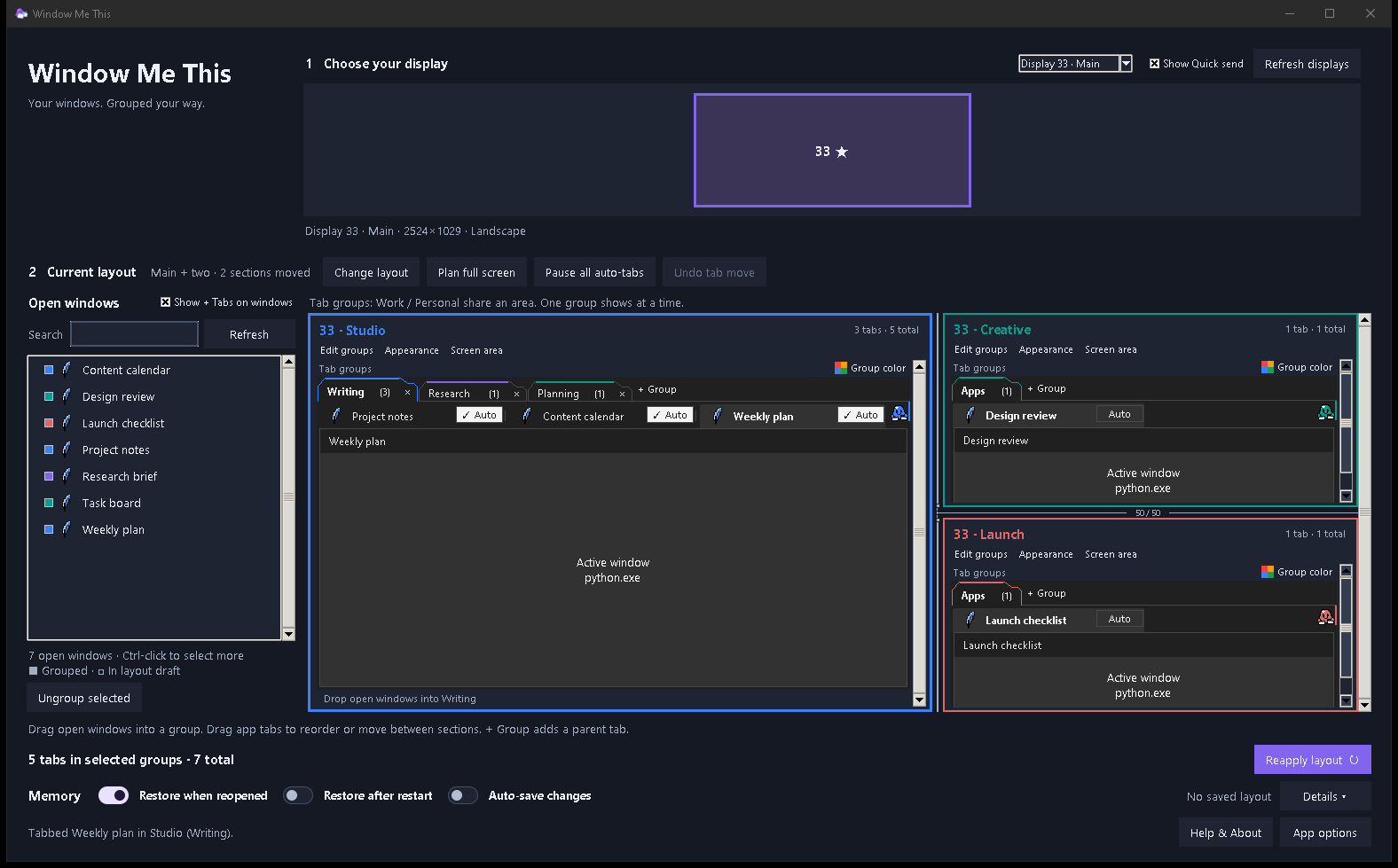
A parent tab names a group of windows, for example Work or Personal. Parent tabs share the same screen area, and one group is shown there at a time. A window tab represents an individual open app window inside the selected group. Click a parent tab to switch groups; click a window tab to bring that app window forward. The design keeps those two decisions separate: choose the named group, then choose a window within it.
These are tabs for ordinary desktop windows. Window Me This leaves the web-page tabs inside a browser, and tabs inside File Explorer, separate from its window groups.
Build a group from windows you already have open
- Open the application windows you want to organize, then start Window Me This.
- Choose a display in the monitor map and select a layout. In a new layout draft, drag windows into zone cards or select them and choose + Add selected.
- On a first deployment, assign at least one window to a zone and select Deploy new groups. When changing an existing layout, select Apply layout. The sections then appear in the manager with a Tab groups row, where you can add a parent tab. If the sections already exist, continue to the next step.
- Choose + Group in the deployed section’s Tab groups row and give the parent tab a clear name, such as Work or Research.
- Switch to that parent tab, then drag a row from Open windows onto that section in the manager; the window joins the selected group. For an existing section, you can also choose + Add windows on its floating app-tab bar.
Each parent group keeps its own app tabs in that screen area. If you want a separate set for personal windows, add another parent tab and move those windows into it. The other group’s windows stay assigned there when you switch away.
Reorder or move a window tab
Drag an app tab to a new position to change its order. Drag it into another section to move that window to the section. The manager also has an Undo tab move control for the most recent supported manual move. When you are still planning a new layout, drag rows in the draft to set the order before you deploy.
To bring in another window from an application you already use, drag it from Open windows or add it from the section control. The Auto switch is a separate choice for windows that open later.
Use Auto only for future windows
Auto is off until you enable it on an app tab. When enabled, it can collect new windows from that application into the section’s selected parent group. It does not sweep up the application’s windows that were already open. Pause Auto when you want the next window to stay separate. Auto settings reset when Window Me This closes.
Ungroup or exit when you are finished
Right-click a window tab and choose Ungroup to remove that app window from the group. Its original position is restored, and the app stays open. Closing Window Me This restores grouped windows to their original positions and leaves the applications open. If you just want the manager out of view, minimize its main window; the floating app tabs remain available. If the app is interrupted, reopen it so it can recover the windows.